
Before you start
Review shift times, staffing, and assignments. Publishing can be blocked if current scheduling rules are no longer satisfied.
Find your way around
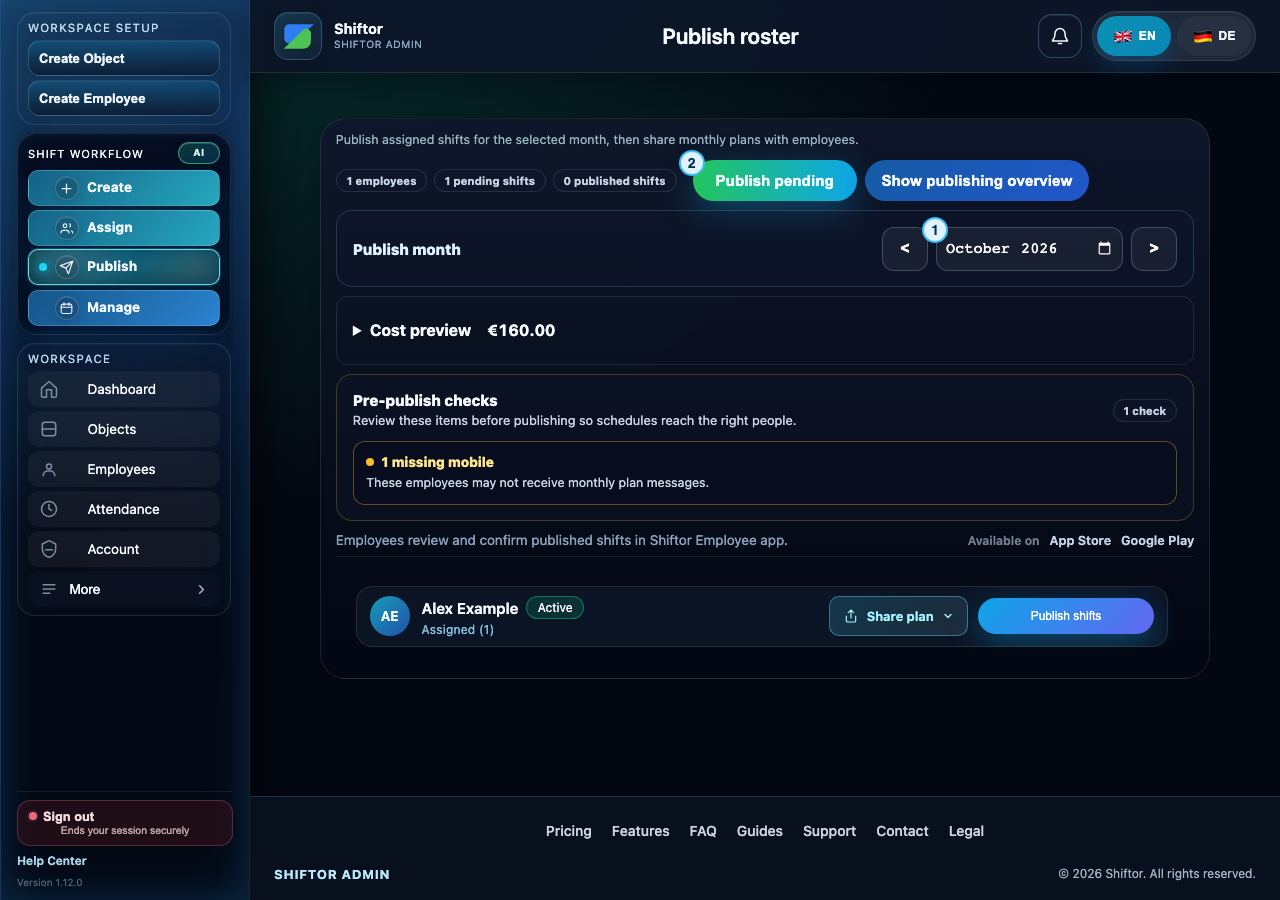
- Check the publishing month.
- Review pending shifts and pre-publish checks before publishing. Employee confirmation is a separate step.
Step by step
- Open Publish and choose the reporting month.
- Review the pending and published counts and the employees included.
- Use the available publish action and wait for the result. Resolve reported conflicts and refresh before retrying.
- Review confirmation status after publication. Published does not mean that every employee has confirmed.
- Use dashboard pending-confirmation links to return to unresolved items.
- After changing a published shift's actual start or end time, review its publication and confirmation status again.
Notes & troubleshooting
- Changes to effective shift times require confirmation again. Do not assume a previous confirmation covers the new times.
- Publishing and WhatsApp actions are restricted in demo mode. In a real workspace, check the action's result rather than assuming a message was delivered.
Understand and resolve a message
No shifts
There are no shifts available for this publishing action.
What to do: Check the selected month, then confirm that shifts were created and employees assigned. Return to Publish and review the updated roster.
Company workspace features require sign-in.