
Before you start
Create shifts and employee profiles first. Keep employee restrictions and availability up to date.
Find your way around
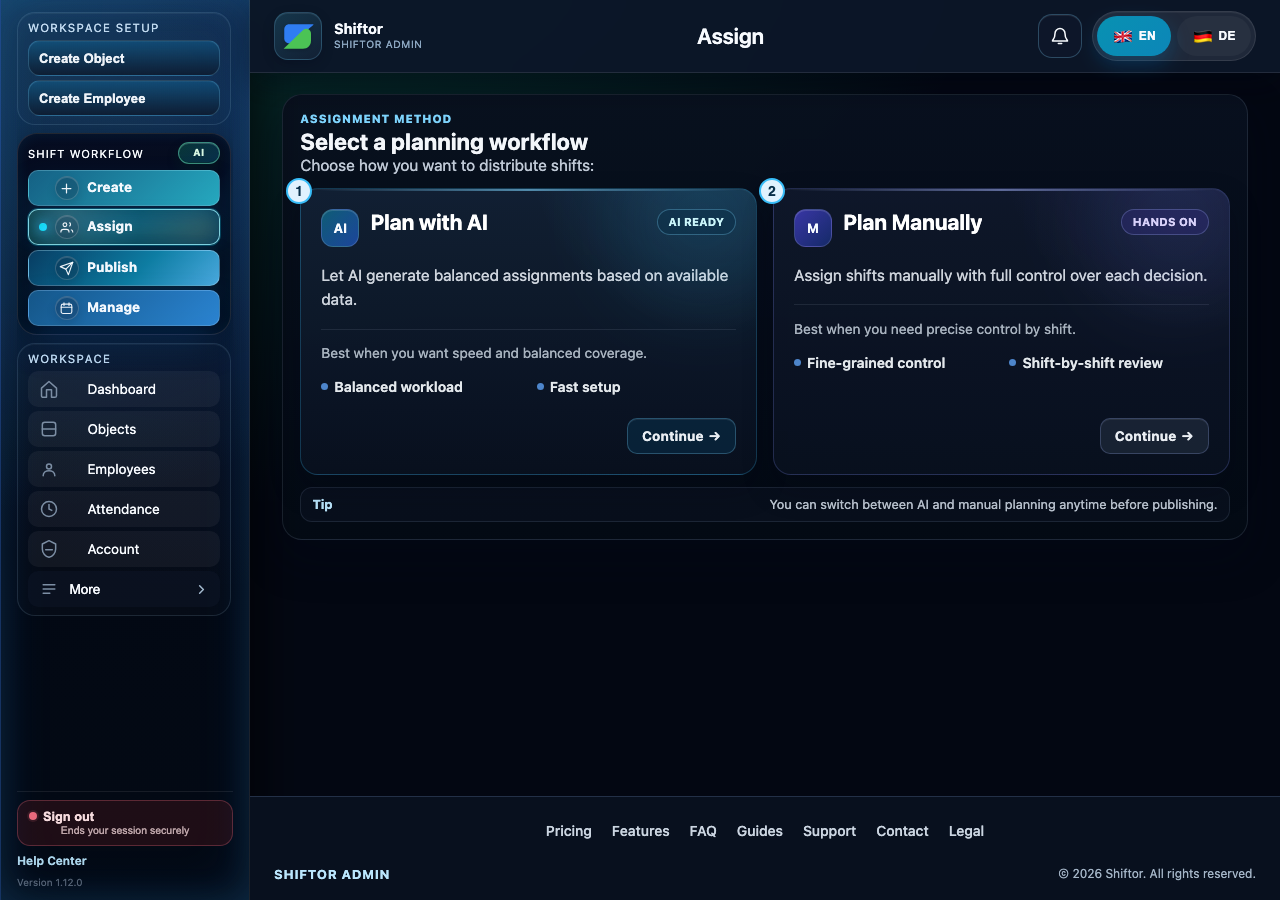
- Choose AI planning to generate a proposal for review.
- Choose manual planning to make assignments yourself.
Step by step
- Open Assign and choose AI planning or manual planning.
- For AI planning, choose the target month. For manual planning, choose the object and month. Review the shifts and required staffing.
- Select eligible employees. Read any explanation beside a disabled or rejected candidate.
- Review a generated plan before saving; suggestions are not final assignments until saved.
- Save and check the result. Recheck open positions and adjust the plan where necessary.
- Go to Publish when you are ready to release the roster.
Notes & troubleshooting
- The app checks current eligibility when saving. A preview can become outdated if availability or another shift changes.
- Overlaps, insufficient rest, absence, capacity, or configured work limits can block an assignment. Fix the cause rather than repeatedly retrying the same selection.
Understand and resolve a message
Select at least one shift.
No shift is selected for the assignment.
What to do: Select the shifts you want to fill, then select eligible employees and review before saving.
Select at least one employee.
No employee is selected.
What to do: Select at least one eligible employee. If a person is unavailable, read the displayed reason before choosing someone else.
Blocked by minimum rest period
Another shift leaves too little rest between assignments.
What to do: Review the employee’s adjacent shifts. Choose another eligible employee or adjust the shift timing while preserving the required rest period.
Blocked by availability or days off
Availability or a day off prevents this assignment.
What to do: Check the employee’s availability and approved absences for that date. Correct inaccurate records, or choose an available employee.
AI provider unavailable, used smart fallback planner.
The AI provider was unavailable; the fallback planner produced the proposal.
What to do: Review the proposed assignments and open positions before saving. This notice alone does not mean the plan failed.
Company workspace features require sign-in.