
Before you start
Create the worksite first. Check its name and address at the top of the Create Shift page.
Find your way around
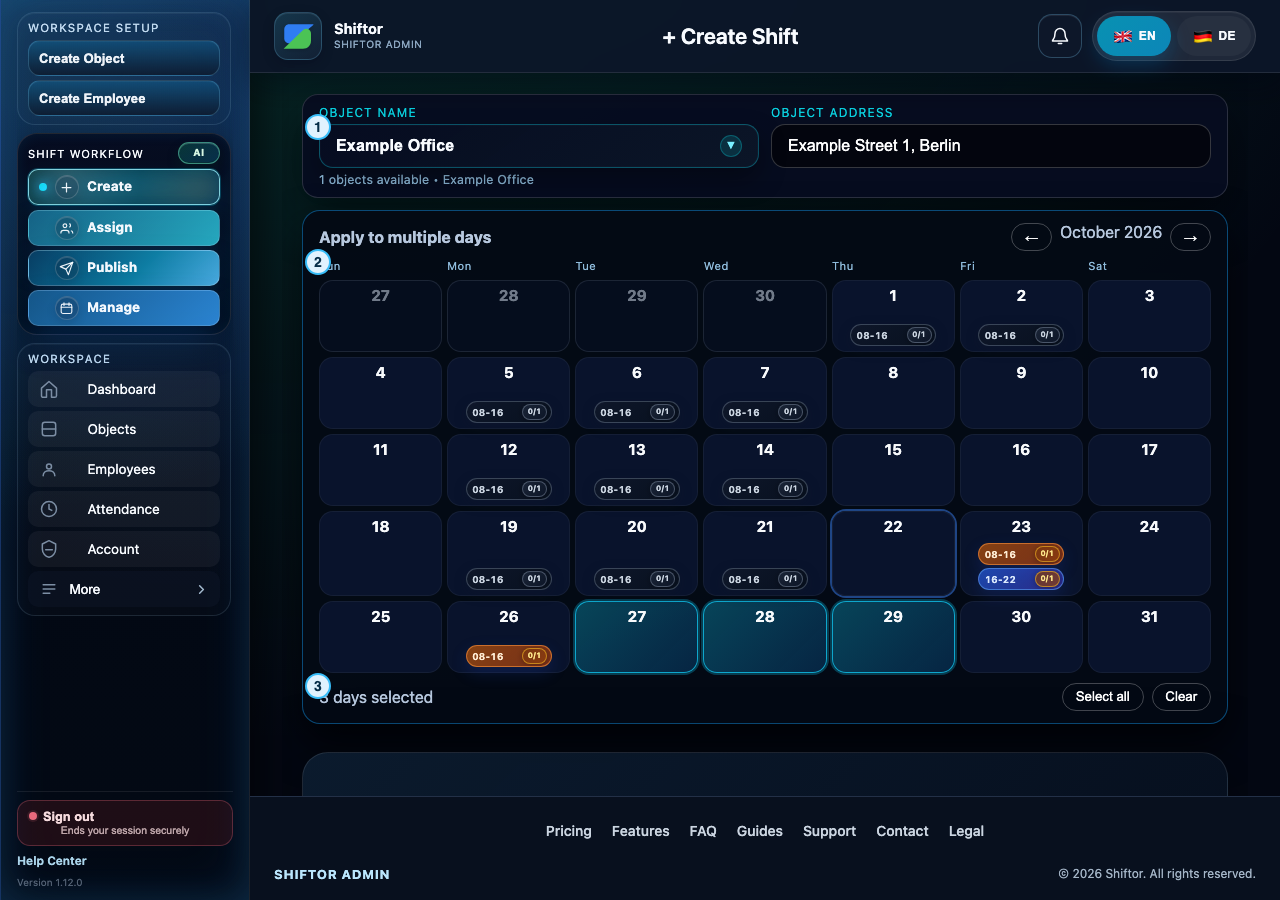
- Choose the worksite and check its address.
- Select the dates in the calendar. Here, 27–29 October are selected for new shifts; the badges on other dates show existing work. On 23 October, two shifts are scheduled.
- Review the selected-day count; use Select all or Clear as needed. Continue below the calendar to enter shift details.
Step by step
- Choose Create under Shift Workflow and select the object.
- Use the month arrows to find the right period. Select the required dates in Apply to multiple days. Select all and Clear affect the calendar selection.
- Review the selected-day count. Existing shift badges show work already scheduled; selecting a date is not the same as editing an existing shift.
- Enter start and end times, required employees, and relevant shift details below the calendar. Check overnight dates carefully.
- Review any generated description before using it, then save. Check the success or error message before leaving the page.
- Continue to Assign to fill the positions, then Publish when the roster is ready.
Notes & troubleshooting
- If saving fails, read the error, correct the highlighted input, and retry. Recheck the calendar before creating another copy.
- Newly created shifts still need assignments and publication. Creating a shift does not confirm employee attendance.
Understand and resolve a message
No shifts
There are no shifts available for this publishing action.
What to do: Check the selected month, then confirm that shifts were created and employees assigned. Return to Publish and review the updated roster.
Company workspace features require sign-in.