
Before you start
Create the month’s shifts and maintain employee availability and scheduling preferences. Open Assign and choose AI planning.
Find your way around
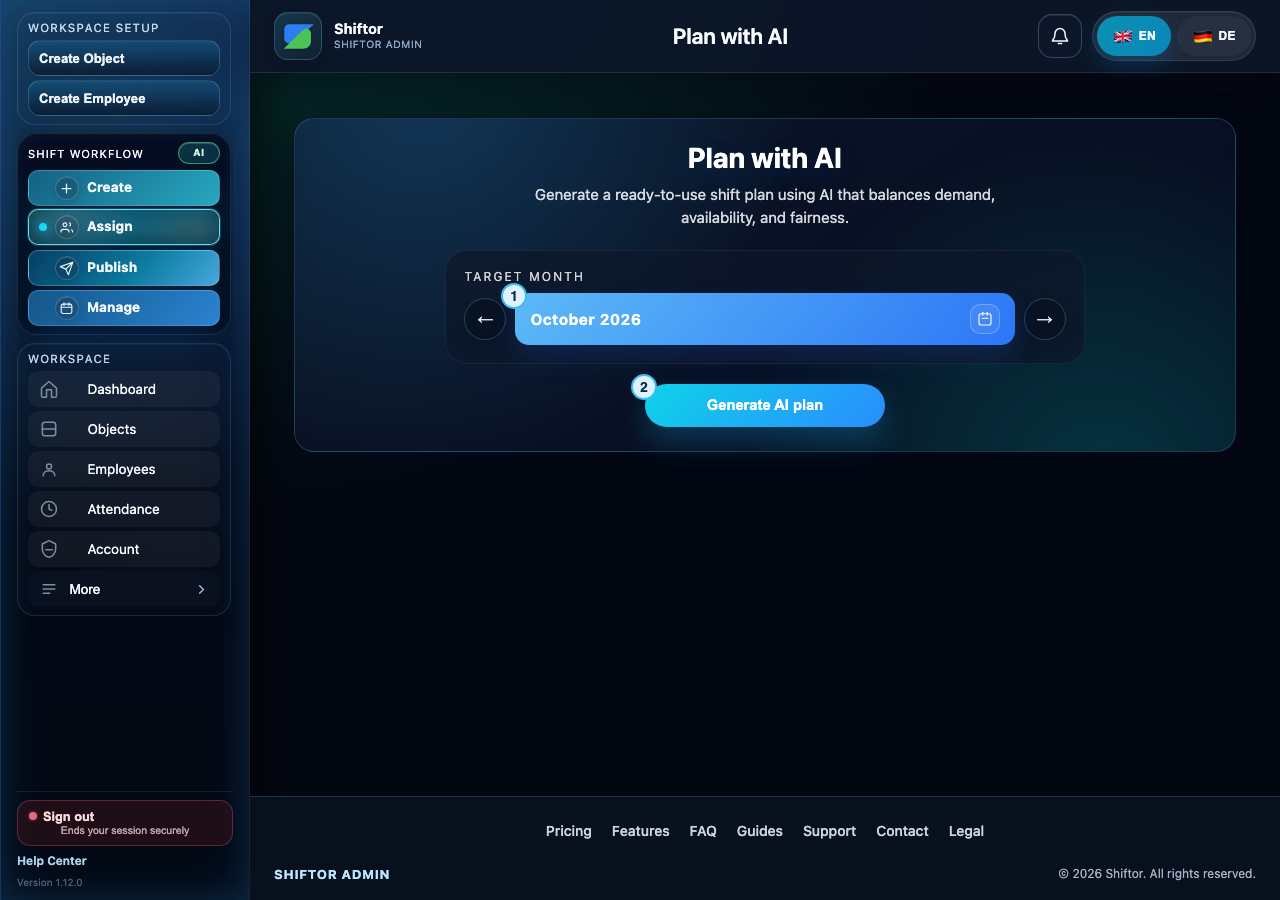
- Choose the target month for the proposal.
- Generate the plan, then review coverage, employee details, and conflicts before accepting it.
Step by step
- Choose the target month using the month selector or arrows, then start generating a plan.
- Wait for the review. If alternative scenarios are offered, compare coverage, remaining positions, risk days, and employee distribution before selecting one.
- Expand employee details and read explanations for proposed assignments and blocked positions. Follow prompts to correct missing employee details or preferences.
- Accept the reviewed plan, or use an employee-level acceptance action where offered. Acceptance saves the relevant assignments; wait for the success message.
- If the result still offers a confirmation action, review it and confirm the unsaved plan. A generated preview alone is not proof that assignments were saved.
- Review remaining open positions, use manual planning for unresolved work, and publish the saved schedule when ready.
Notes & troubleshooting
- A fallback-planner notice means an alternative planner was used. Review its proposals and remaining gaps just as carefully.
- Availability and eligibility are checked again on save. Changing data can invalidate an earlier proposal; refresh and resolve the stated conflict.
Understand and resolve a message
Select at least one shift.
No shift is selected for the assignment.
What to do: Select the shifts you want to fill, then select eligible employees and review before saving.
Select at least one employee.
No employee is selected.
What to do: Select at least one eligible employee. If a person is unavailable, read the displayed reason before choosing someone else.
Blocked by minimum rest period
Another shift leaves too little rest between assignments.
What to do: Review the employee’s adjacent shifts. Choose another eligible employee or adjust the shift timing while preserving the required rest period.
Blocked by availability or days off
Availability or a day off prevents this assignment.
What to do: Check the employee’s availability and approved absences for that date. Correct inaccurate records, or choose an available employee.
AI provider unavailable, used smart fallback planner.
The AI provider was unavailable; the fallback planner produced the proposal.
What to do: Review the proposed assignments and open positions before saving. This notice alone does not mean the plan failed.
Company workspace features require sign-in.