
Before you start
Create shifts and employee profiles first. Open Assign and choose manual planning.
Find your way around
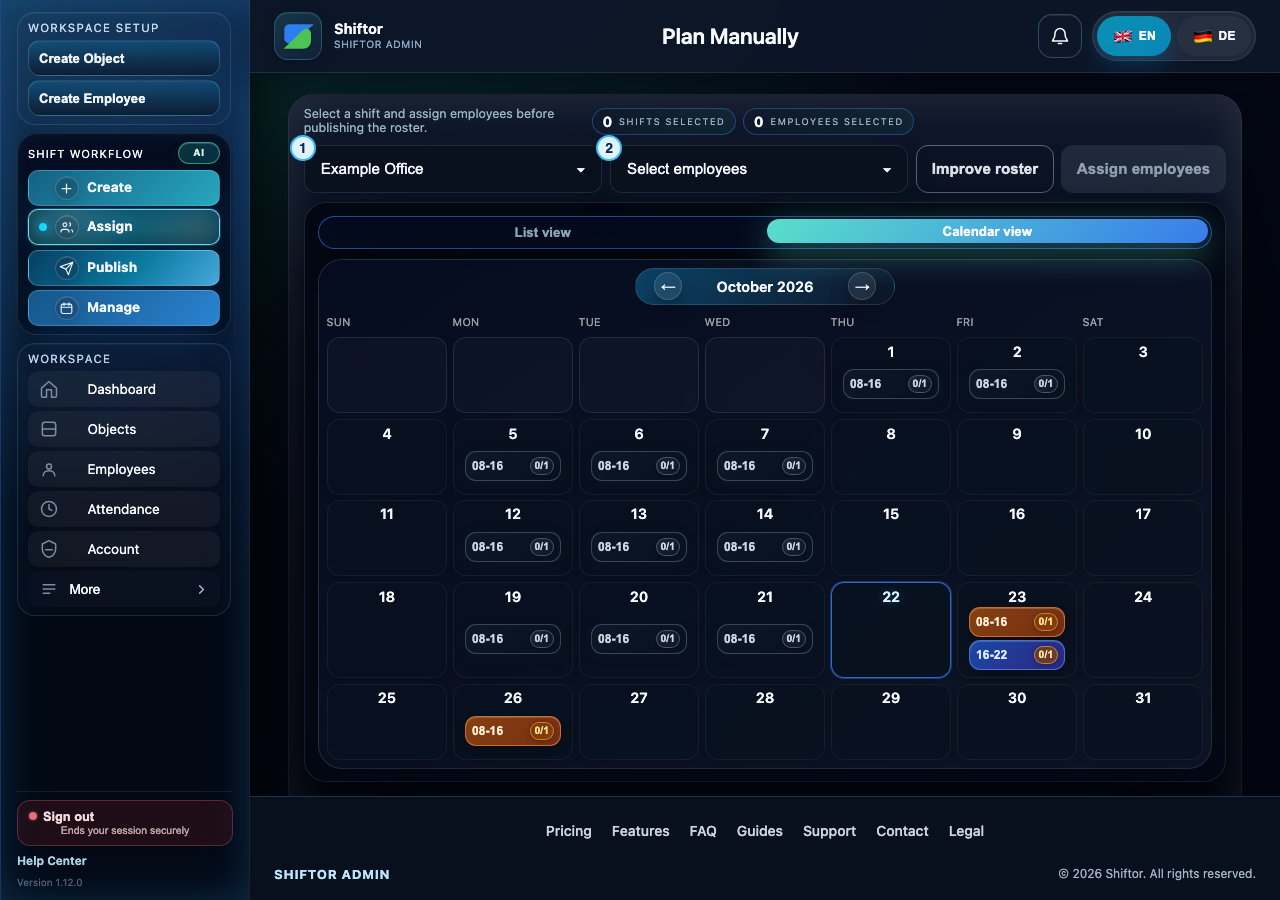
- Choose the worksite, then inspect the month’s shifts below.
- Select employees for the chosen shifts. Every selected employee is assigned to every selected shift; review capacity before saving.
Step by step
- Select the object and month. Use calendar or list view to inspect dates, times, and open positions.
- Select the shifts to fill. Check that they belong to the intended location and period.
- Select eligible employees. Read candidate conflict explanations and refresh candidates if their circumstances have changed.
- Review the batch summary: every selected employee is assigned to every selected shift. Reduce either selection if this exceeds staffing capacity.
- Save and read the result, including created and already-existing assignments. Resolve any availability, overlap, or rest-period conflict before retrying.
- Review remaining open slots and continue to Publish. Saving assignments does not publish the roster.
Notes & troubleshooting
- For a replacement opened from a swap request, select exactly one shift and one replacement employee. The replacement must differ from the original worker.
- After a failed or interrupted save, reload and inspect existing assignments before trying again.
Understand and resolve a message
Select at least one shift.
No shift is selected for the assignment.
What to do: Select the shifts you want to fill, then select eligible employees and review before saving.
Select at least one employee.
No employee is selected.
What to do: Select at least one eligible employee. If a person is unavailable, read the displayed reason before choosing someone else.
Blocked by minimum rest period
Another shift leaves too little rest between assignments.
What to do: Review the employee’s adjacent shifts. Choose another eligible employee or adjust the shift timing while preserving the required rest period.
Blocked by availability or days off
Availability or a day off prevents this assignment.
What to do: Check the employee’s availability and approved absences for that date. Correct inaccurate records, or choose an available employee.
AI provider unavailable, used smart fallback planner.
The AI provider was unavailable; the fallback planner produced the proposal.
What to do: Review the proposed assignments and open positions before saving. This notice alone does not mean the plan failed.
Company workspace features require sign-in.